
Removing backgrounds from photos no longer needs 30 minutes or more. Thanks to AI background removers, the process now only takes a few seconds. However, speed isn’t the only consideration. The best tools should also handle fine details, busy backgrounds, and areas where the subject and background have similar colors.
With that in mind, we tested and compared six AI background removers on the market today. We evaluated each platform based on removal quality, edge accuracy, speed, ease of use, editing and export options, and overall value.
Quick Comparison
Each platform has its own strengths and limitations. Here’s how the six AI background removers compare.
| Tool | Best For | Free Usage Limit | Further Editing |
|---|---|---|---|
| Design.com | Overall background removal and design | Unlimited | Yes |
| PhotoRoom | Product and ecommerce images | 25 exports/week (max. 100/month) | Yes |
| Pixelcut | Product image editing | 3 uses/day | Yes |
| Canva | Creating designs after removal | 1 free trial use | Yes |
| Adobe Firefly | AI-powered background editing | 25 AI credits/month | Yes |
| PicWish | Simple background removal | 50 free uses/day | Yes |
How We Tested the Best AI Background Removers
For a fair comparison, we tested all six AI background removers using the same image. This allowed us to see how each tool handled the same details and challenges.

We chose a portrait with long, loose hair and a busy outdoor background. The hair strands, uneven edges, bright lighting, and people in the background gave the platforms plenty of details to work around.
We evaluated each tool based on:
- Removal quality: How well it removed the background without cutting out parts of the subject.
- Edge accuracy: How well it handled hair and other fine edges.
- Speed: How long it took to get a finished result.
- Ease of use: How simple the process was from upload to download.
- Editing options: What you could do with the image after removing the background.
- Export options: The available download formats and transparency options.
- Value: What you get for free and what requires a paid plan.
The Best AI Background Remover Tools in 2026
1. Design.com — Best Overall for Background Removal and Design
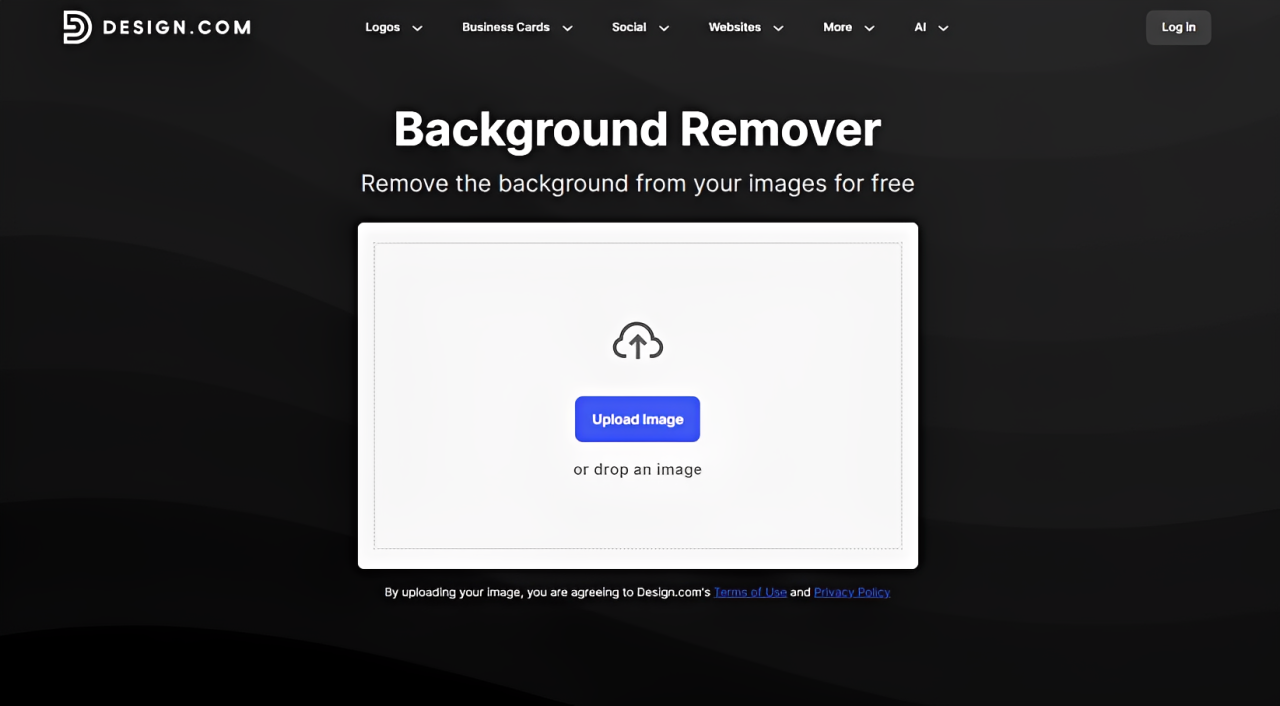
Design.com is known as one of the best logo generators, but it also offers an AI Background Remover. The tool automatically identifies the main subject and removes the background in seconds. What makes it better is that it’s completely free and doesn’t require manual tracing or complicated editing. It also lets you create unlimited transparent images for your product photos, presentations, social media posts, and other projects — which you can make within Design.com.
How it performed:
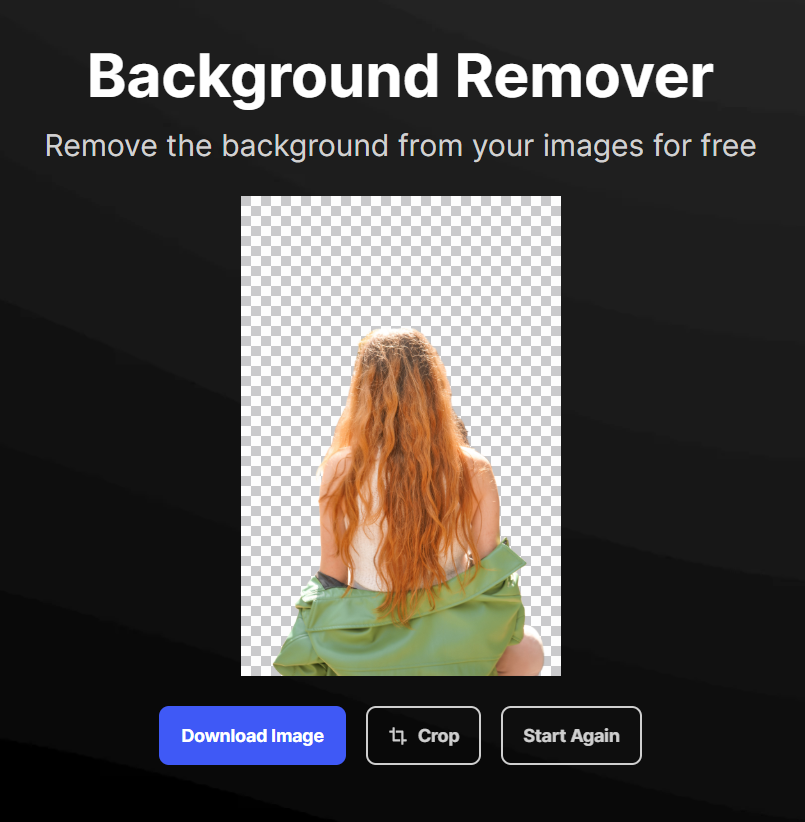
Design.com successfully removed the busy background while keeping the subject and most of the fine hair strands intact. Even the loose strands around the top and sides remained visible. The process was also quick — upload or drag in an image, wait a few seconds for the AI to remove the background, and download the result as a transparent PNG. Design.com also suggests templates featuring your cutout that you can use in a new design right away.
What we liked:
- Removed images can be incorporated into other Design.com projects and branding materials.
- No manual tracing or design experience required.
- Clipped images are automatically saved for reuse.
- Free to use.
Best for: Businesses, marketers, creators, and beginners who want quick background removal alongside tools for creating other visual assets.
2. PhotoRoom — Best for Product and Ecommerce Images
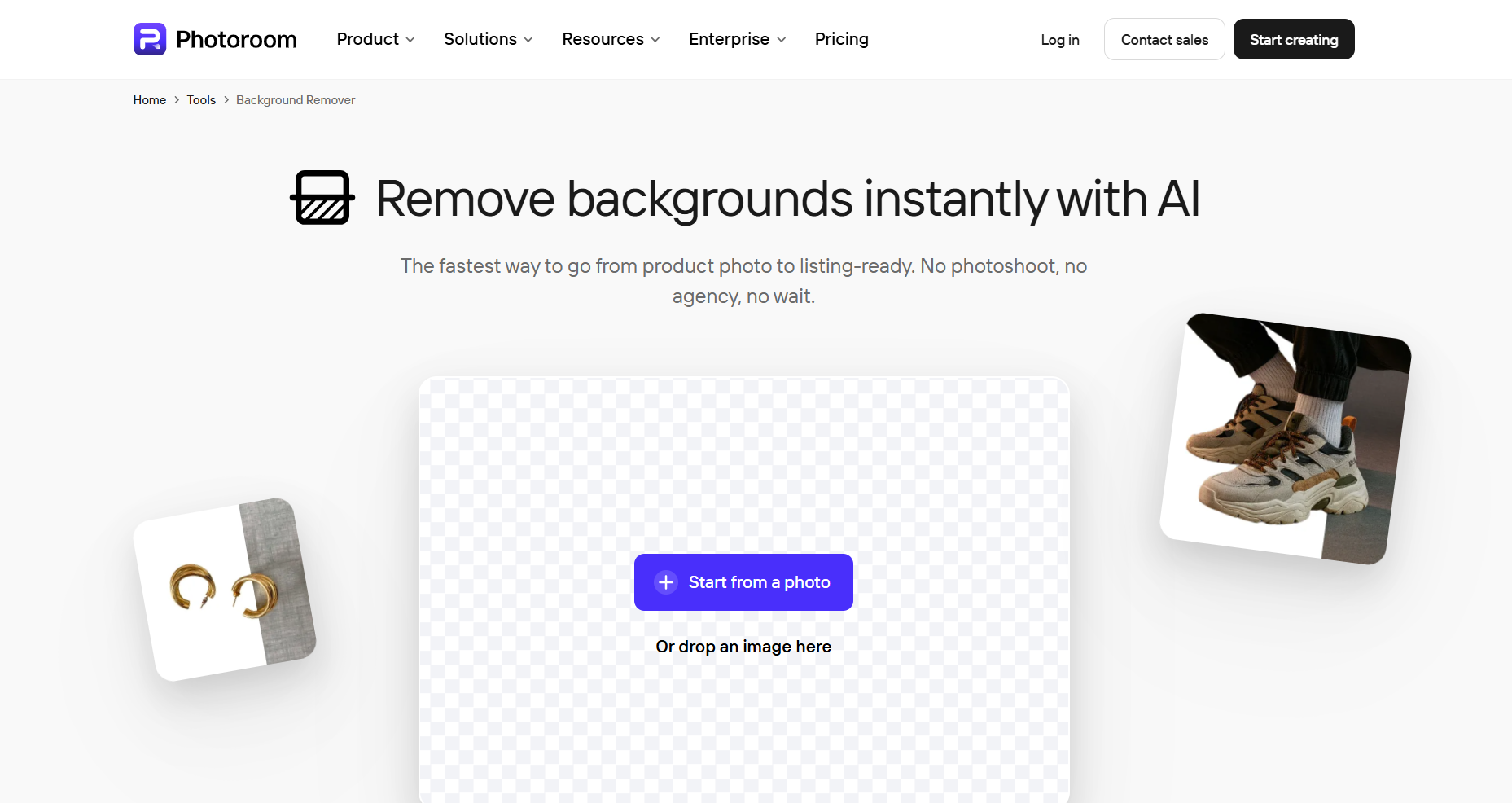
PhotoRoom is an AI photo-editing platform built largely around product and ecommerce images. Its background remover automatically detects the subject after you upload an image and creates a transparent cutout. You can download the result or continue editing it with PhotoRoom’s other tools to replace backgrounds, resize images, add shadows, and create product visuals for online stores, marketplaces, and social media.
How it performed:
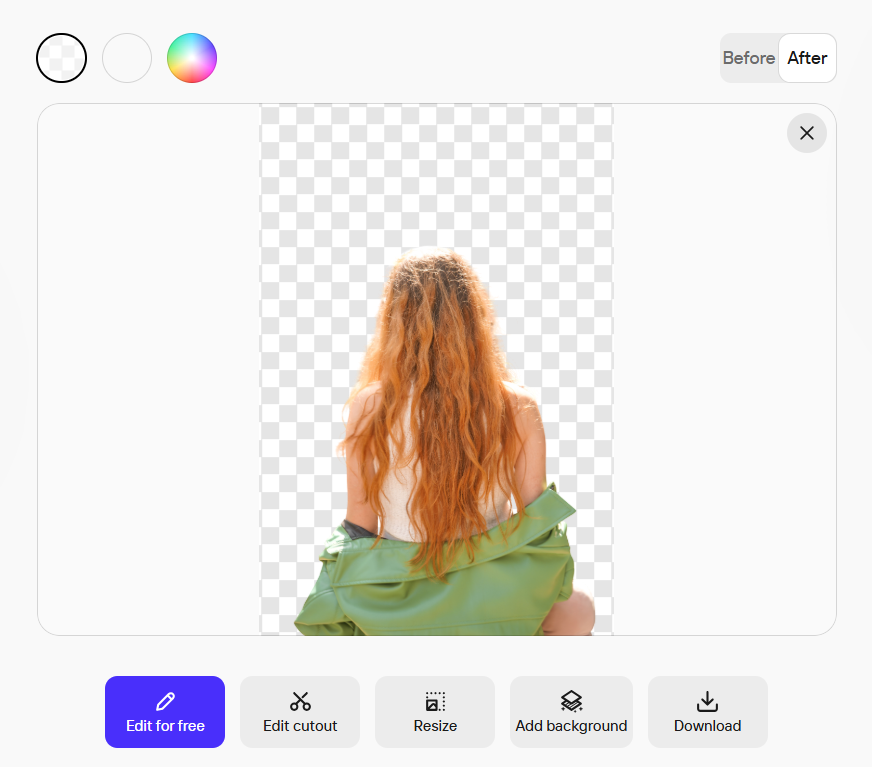
PhotoRoom removed the busy background cleanly and kept most of the fine details around the subject. It preserved many of the loose hair strands, including several isolated strands along the right side. While some areas around the hair looked slightly uneven, the finished cutout required little cleanup overall.
What we liked
- Clean background removal with good preservation of fine hair.
- Offers additional tools for editing product images.
- Finished cutouts can be used directly in other PhotoRoom projects.
Where it could be better
- Some hair edges looked slightly uneven.
- Some advanced features require a paid plan.
Best for: Ecommerce sellers and marketers who regularly create and edit product images.
3. Pixelcut — Best for Product Image Editing
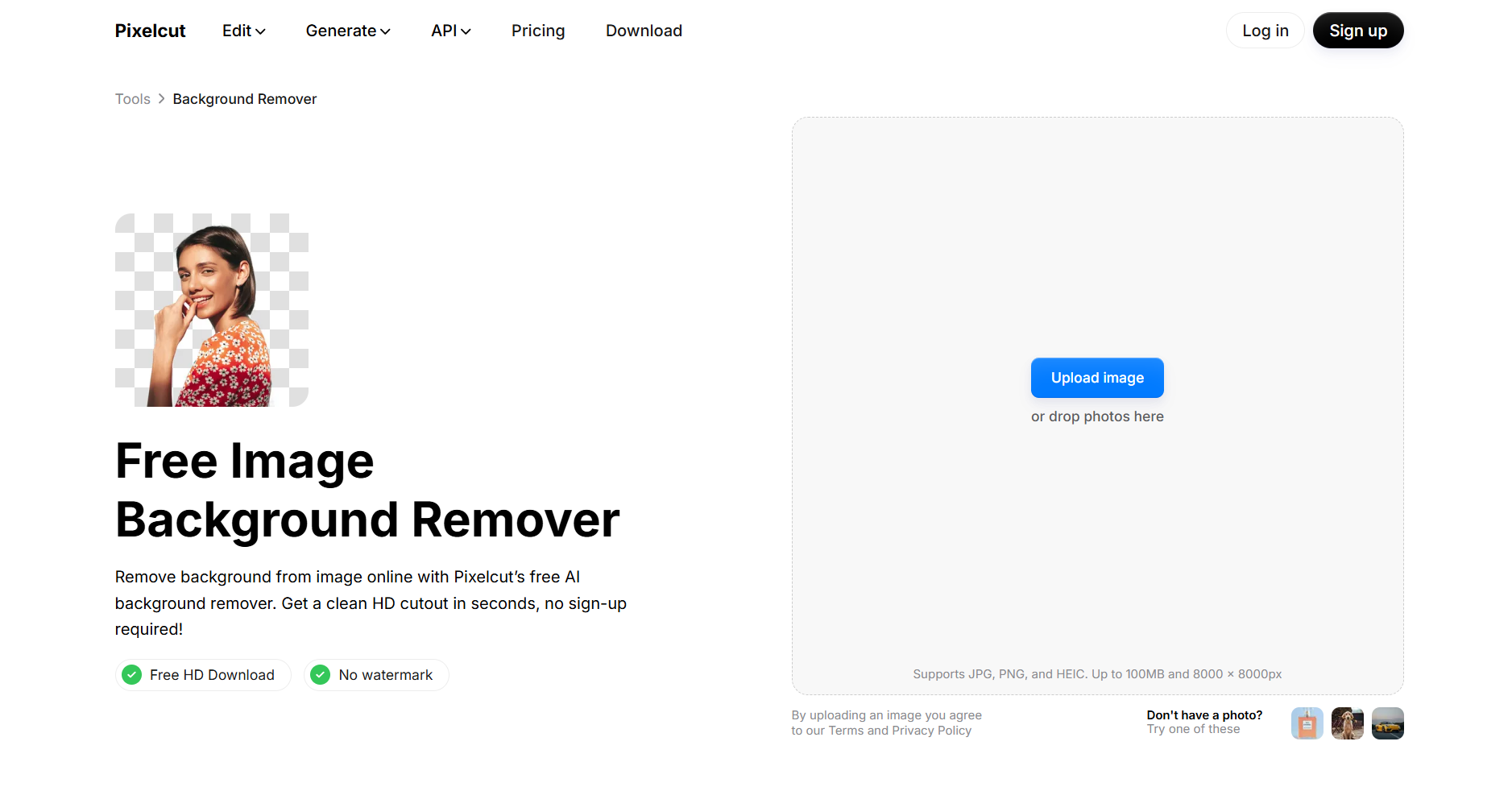
Pixelcut combines automatic background removal with AI tools for product photography and marketing content. Upload an image, and the tool automatically removes the background. You can download the finished image as a transparent PNG or continue editing it with the platform’s AI tools.
How it performed:
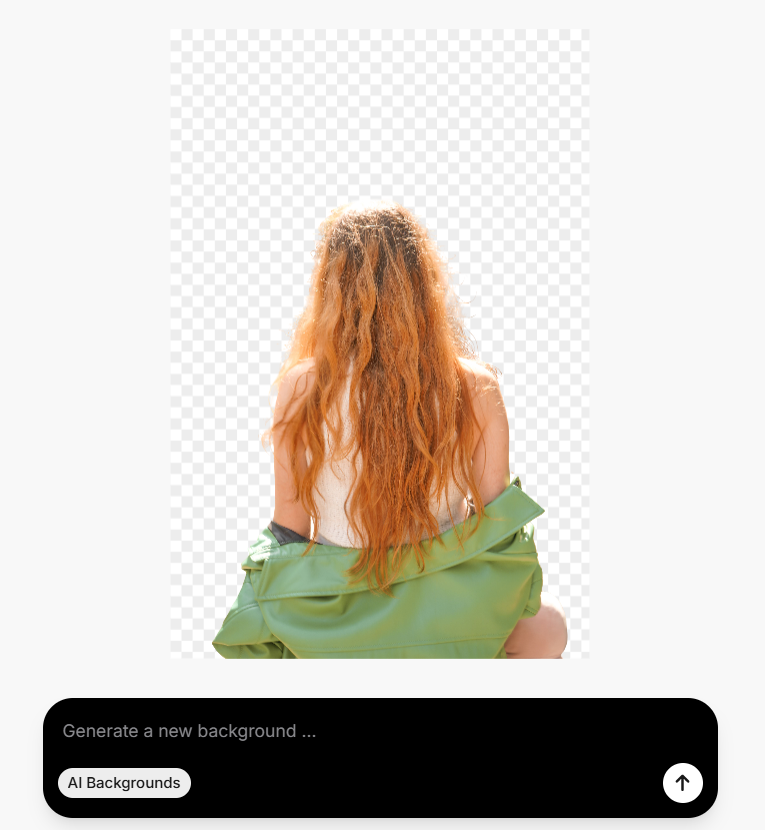
Pixelcut perfectly removed the busy background and kept many fine, loose hair strands intact. It handled the difficult areas around the top and sides particularly well, although a few edges looked slightly rough. Overall, the cutout preserved much of the original hair detail.
What we liked:
- Preserved many fine hair strands in our test.
- Provides additional AI tools for product image editing.
- Offers transparent PNG downloads.
Where it could be better:
- A few areas around the hair looked slightly rough.
- Some advanced AI features require a paid plan.
Best for: Ecommerce sellers and creators who want background removal alongside AI product image tools.
4. Canva — Best for Creating Designs After Background Removal
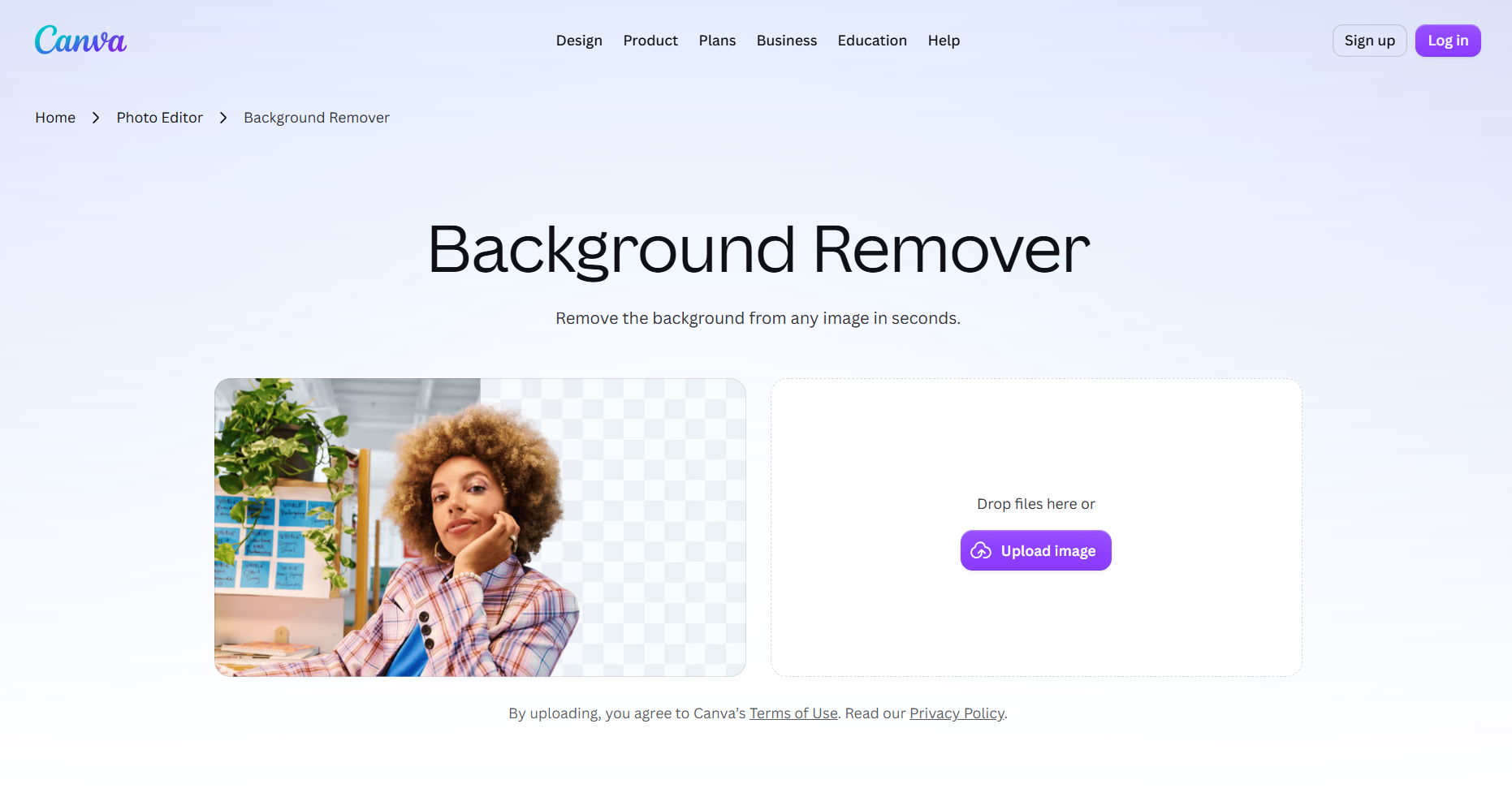
Canva’s Background Remover keeps the process simple. You can upload or drag and drop an image into the tool, and Canva automatically removes the background. Once the cutout is ready, you can download it as a transparent PNG or open it in Canva’s editor to continue working on the image. Canva also gives you tools to refine the cutout or add a new background, text, graphics, filters, and other elements to turn the image into a finished design.
How it performed:
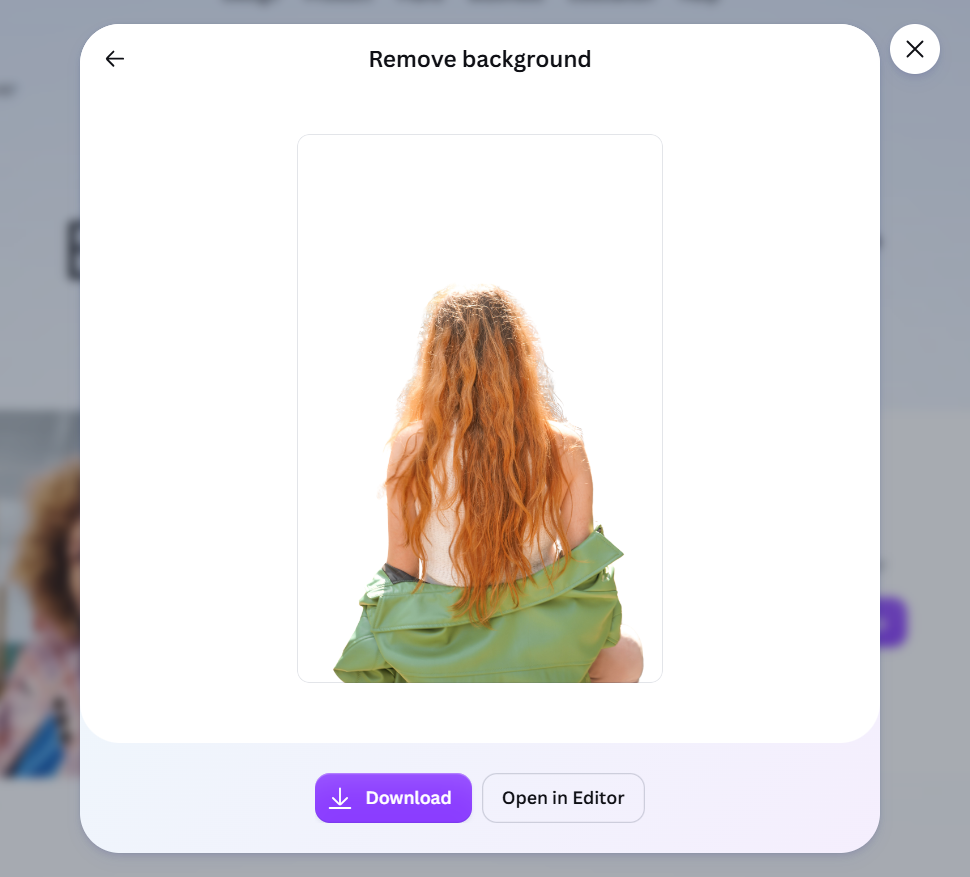
Canva removed the busy background and produced a clean cutout overall. However, it removed some of the finer strands around the sides, and the left edge looked slightly uneven. Still, the result was usable without much additional cleanup.
What we liked:
- Simple upload and background removal process.
- Downloads the result as a transparent PNG.
- Option to continue editing the image using Canva’s other design tools.
Where it could be better:
- Some fine hair strands were lost in our test.
- Unlimited use of Background Remover requires Canva Pro.
Best for: Users who want to remove a background and immediately use the cutout in another design.
5. Adobe Firefly — Best for AI-Powered Background Editing
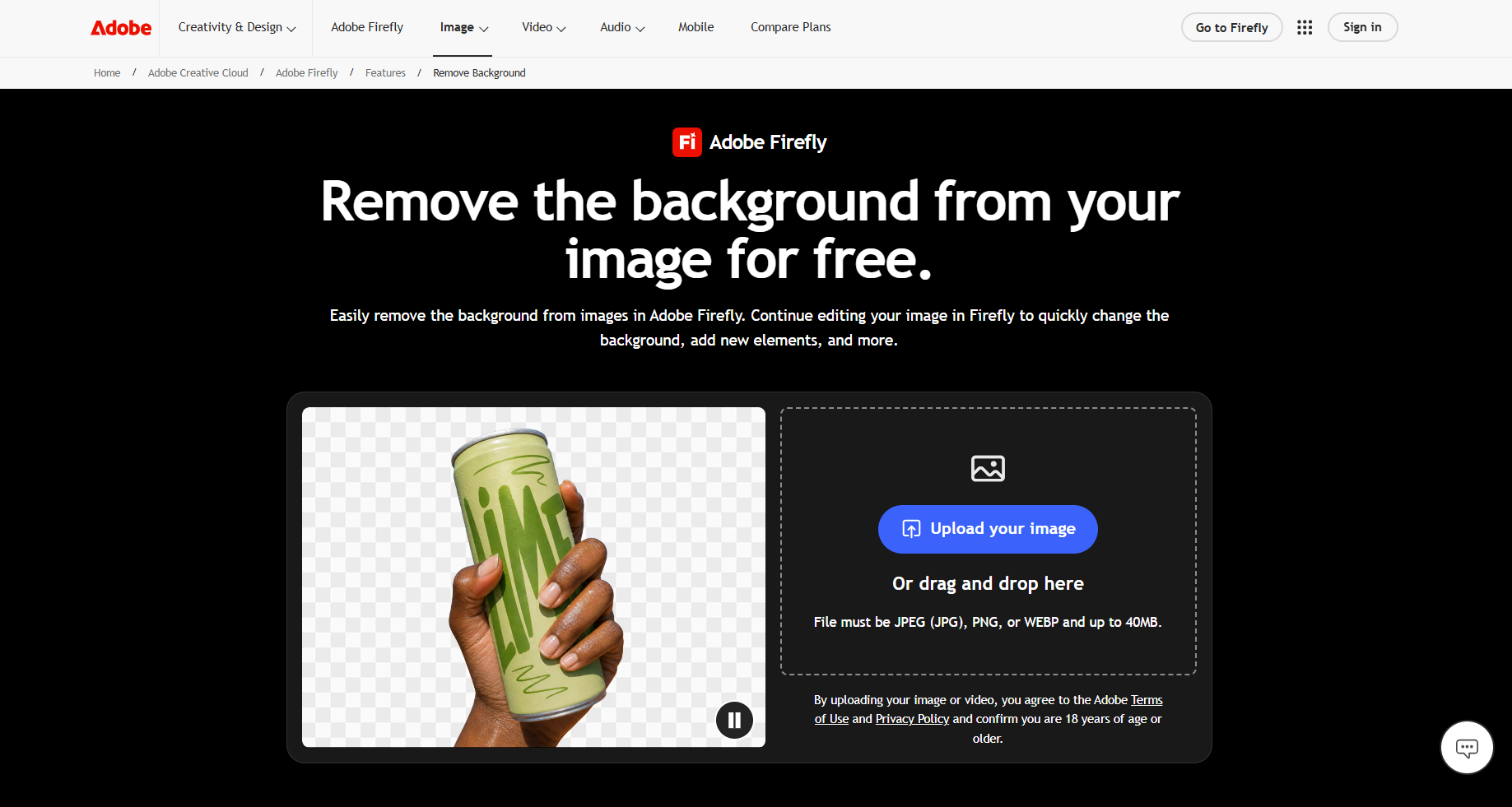
Adobe Firefly offers a free AI background remover as part of its image editing tools. Upload your image and the platform automatically isolates the subject. You can download the finished cutout as a transparent PNG. Adobe also lets you continue working with the clipped image within the platform. You can edit or upscale the image, animate or cartoonize the photo, generate a video, and use other AI tools.
How it performed:
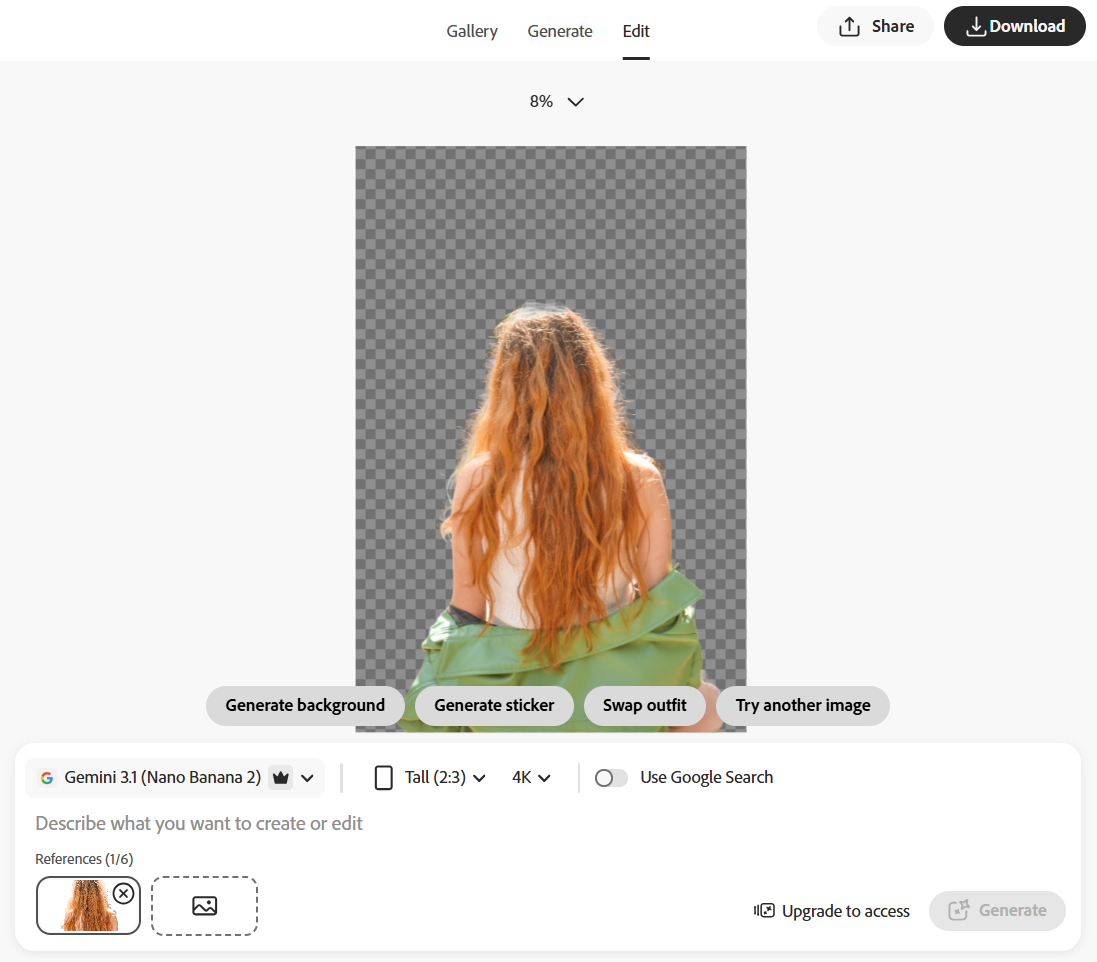
Adobe Firefly removed most of the busy background and kept the fine, loose hair strands intact. However, the result wasn’t completely clean. A small part of the original background remained around the upper-right side of the hair, along with a few rough areas around the edges. The tool handled fine details well overall, but the cutout would need some cleanup before use in a finished design.
What we liked:
- Simple upload-to-download process.
- Several AI tools are available for further editing.
- Finished images can be downloaded as transparent PNGs.
Where it could be better:
- Some parts of the original background remained in our test and required cleanup.
- Free accounts have daily generation limits.
Best for: Users who want to remove a background and continue editing the image with other AI tools.
6. PicWish — Best for Simple Background Removal
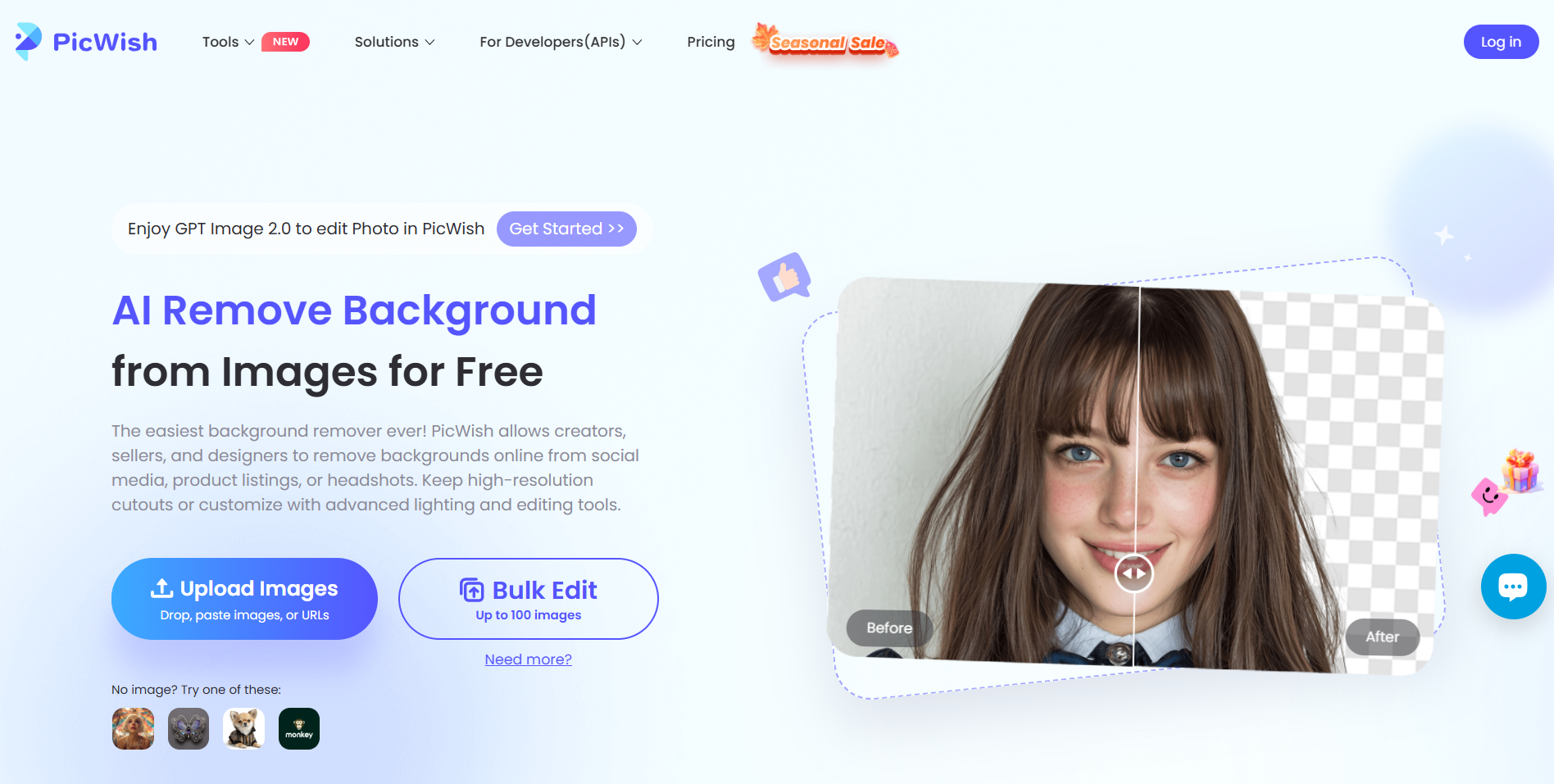
PicWish offers an AI background remover that automatically detects the main subject after you upload an image. You can download the finished cutout as a PNG file. The platform also has other tools for background replacement, image enhancement, object removal, and other common photo-editing tasks.
How it performed:
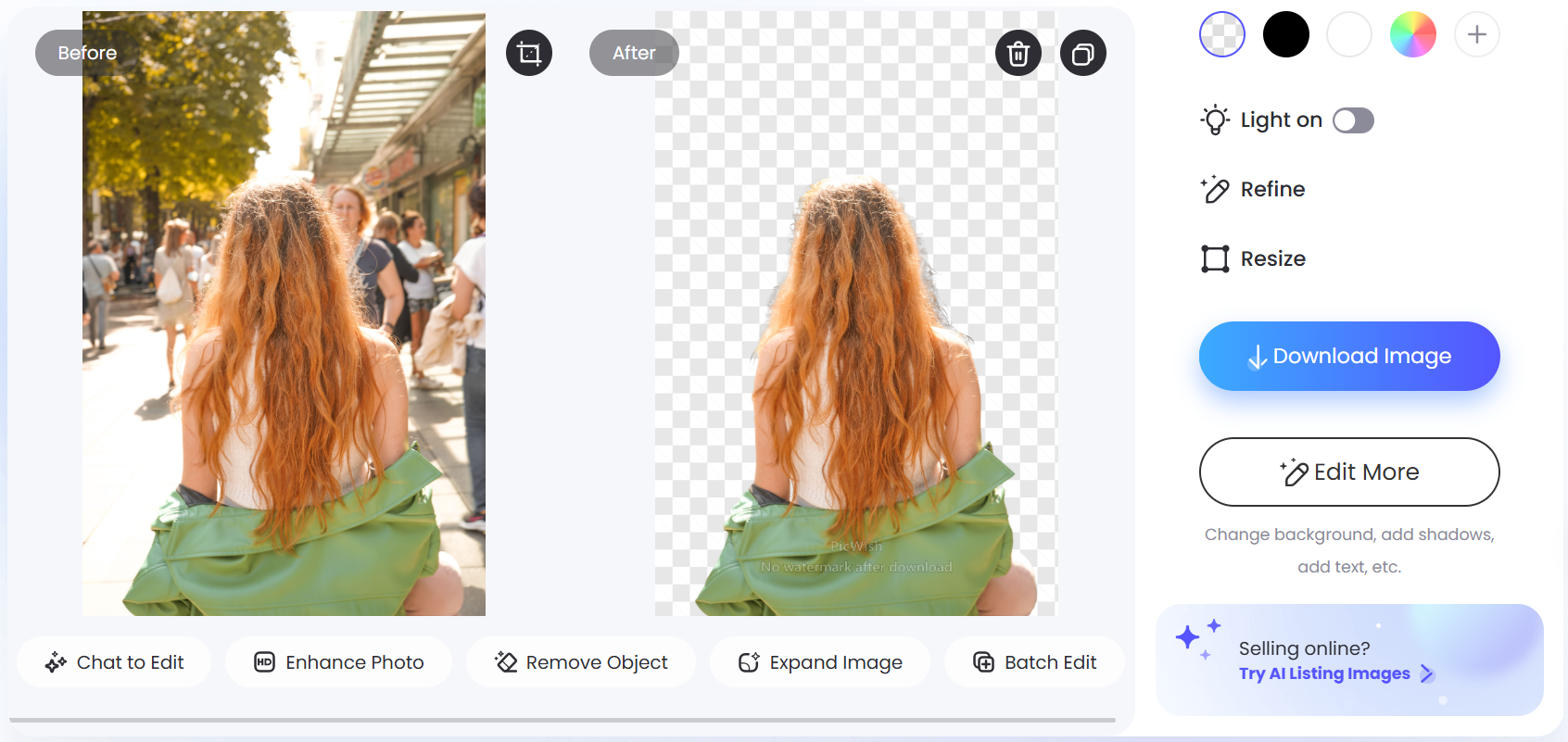
PicWish removed the busy background and kept the main subject intact. It preserved some fine hair around the edges, but many of the loose strands were removed. A few areas around the sides also looked slightly rough, although the finished cutout was clean overall.
What we liked
- Simple background removal process.
- Kept the main subject intact in our test.
- Offers additional AI photo-editing tools.
Where it could be better
- Some fine and loose hair was lost.
- Higher-resolution downloads require an upgrade.
Best for: Users who want a straightforward AI background remover with additional photo-editing tools.
How to Choose an AI Background Remover
Although AI background removers may seem similar, it’s still worth comparing your options before choosing one. Consider these factors:
- Removal quality: Check how well the tool handles fine details, complex edges, and busy backgrounds.
- Usage limits: Look at how many images you can process for free and when those limits reset.
- Download options: Check the available file formats, resolution, transparency, and any export restrictions.
- Editing tools: Consider whether you need additional tools to refine or modify the image after background removal.
- Ease of use: Look for a simple workflow that doesn’t require unnecessary setup or manual editing.
- Other design tools: Consider whether you need the finished cutout for other projects and whether those tools are available on the same platform.
Final Verdict
AI background removers can save considerable editing time, but removal quality can vary, especially with fine details such as loose hair and complex edges.
In this article, Design.com stood out for its combination of removal quality, unlimited free use, and broader design tools. It produced a clean cutout while preserving most of the fine hair strands. You can also use the finished image across other branding and design projects within the platform.
Ultimately, the right tool depends on the images you will work with, how often you need background removal, and what you plan to do with the finished image.
